
AI Image Generator: Create and Transform Images Online
Describe an idea or upload a photo, then use Pixomio to explore new visuals, creative styles, and portrait transformations in your browser.
Server Error
Explore AI image tools
Transform photos, create portraits, change styles, and more.
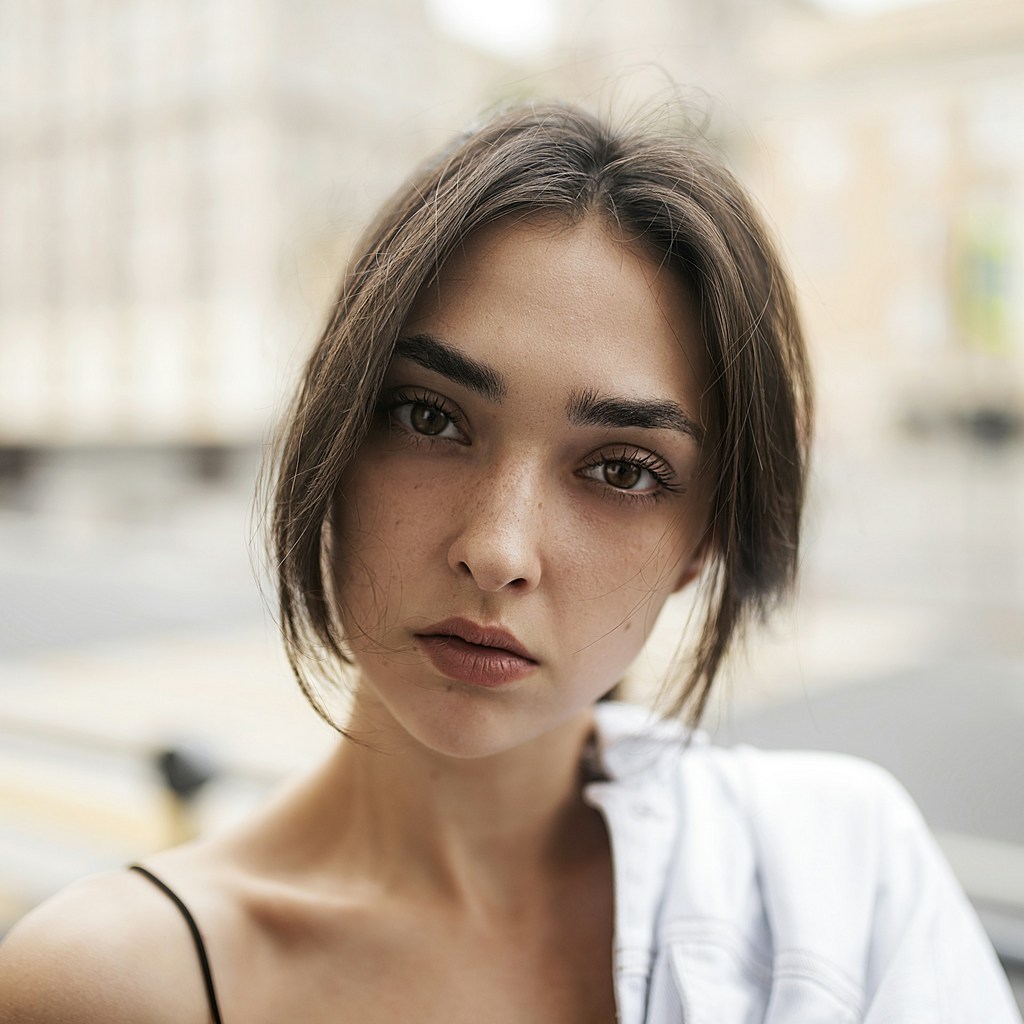

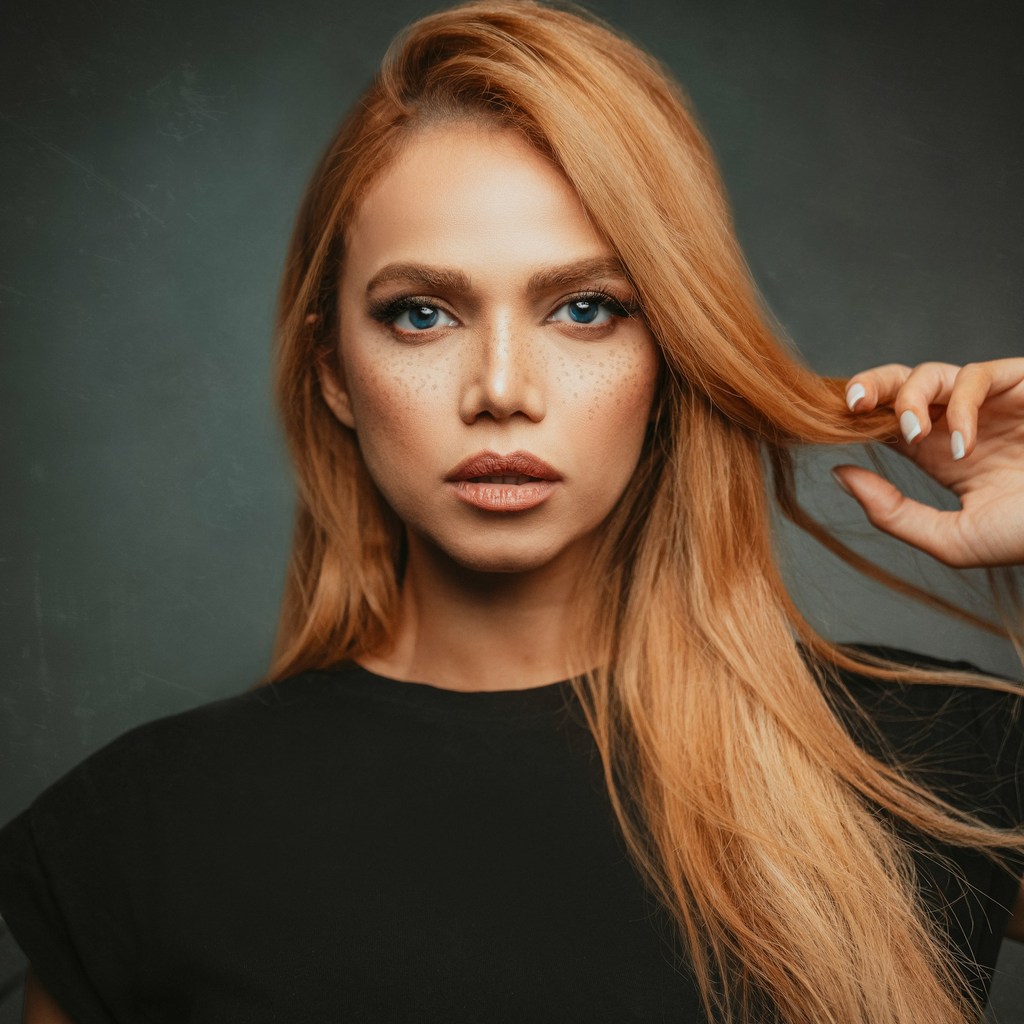

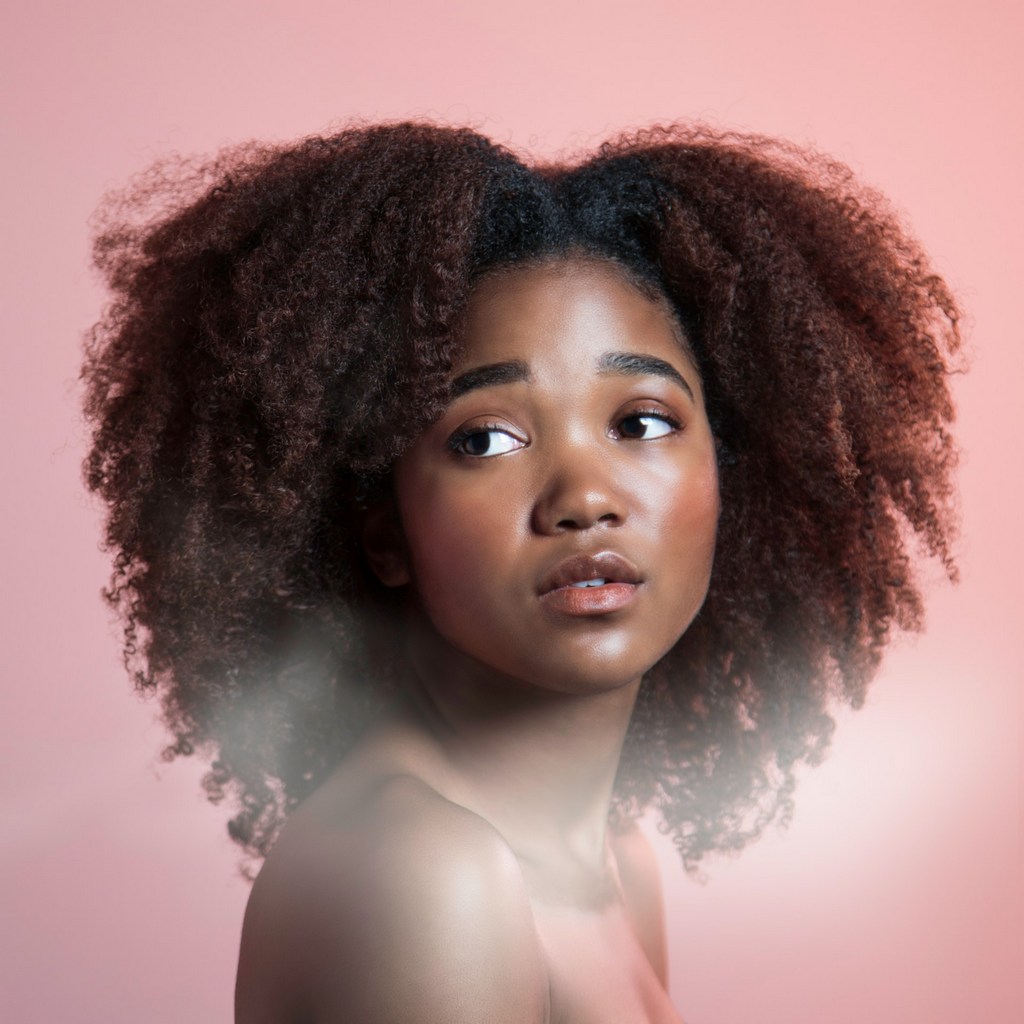
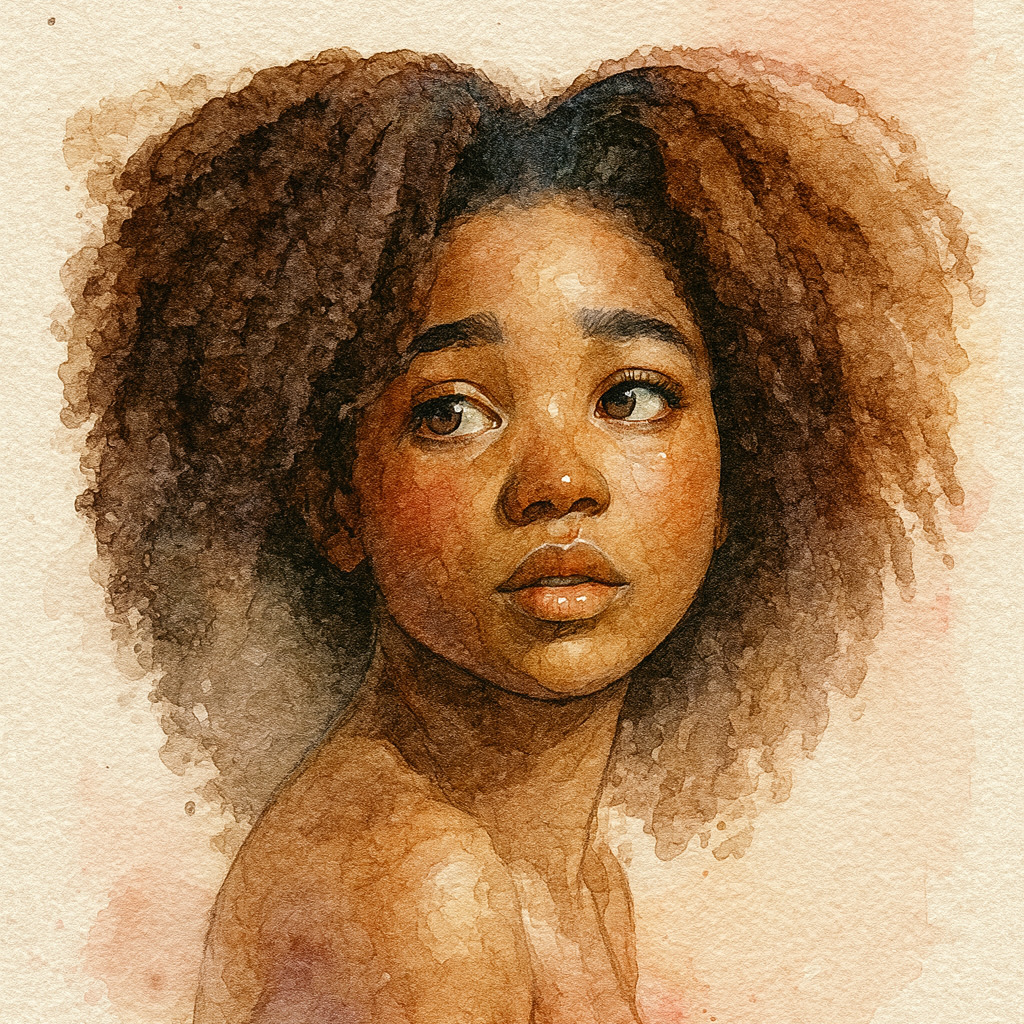

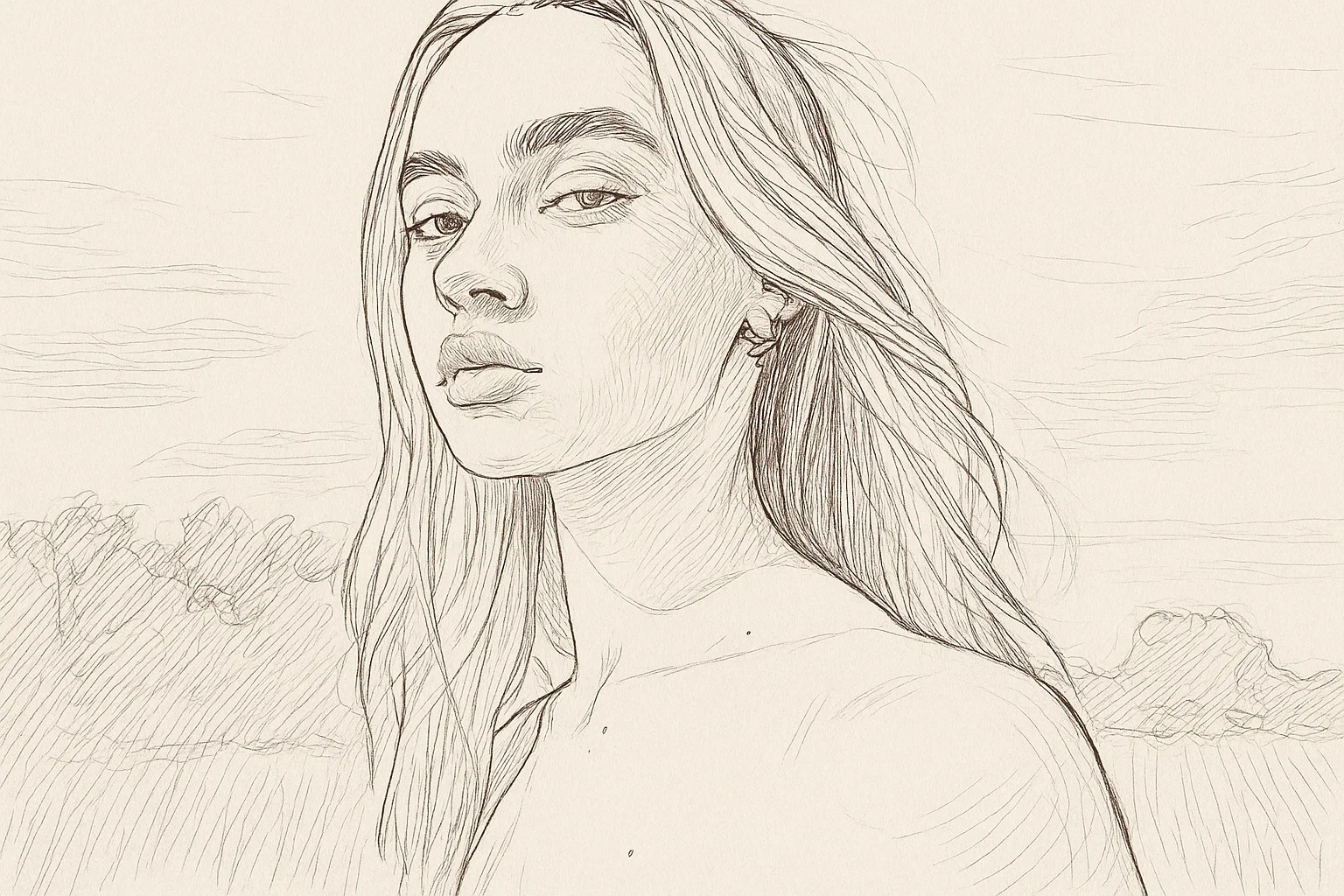
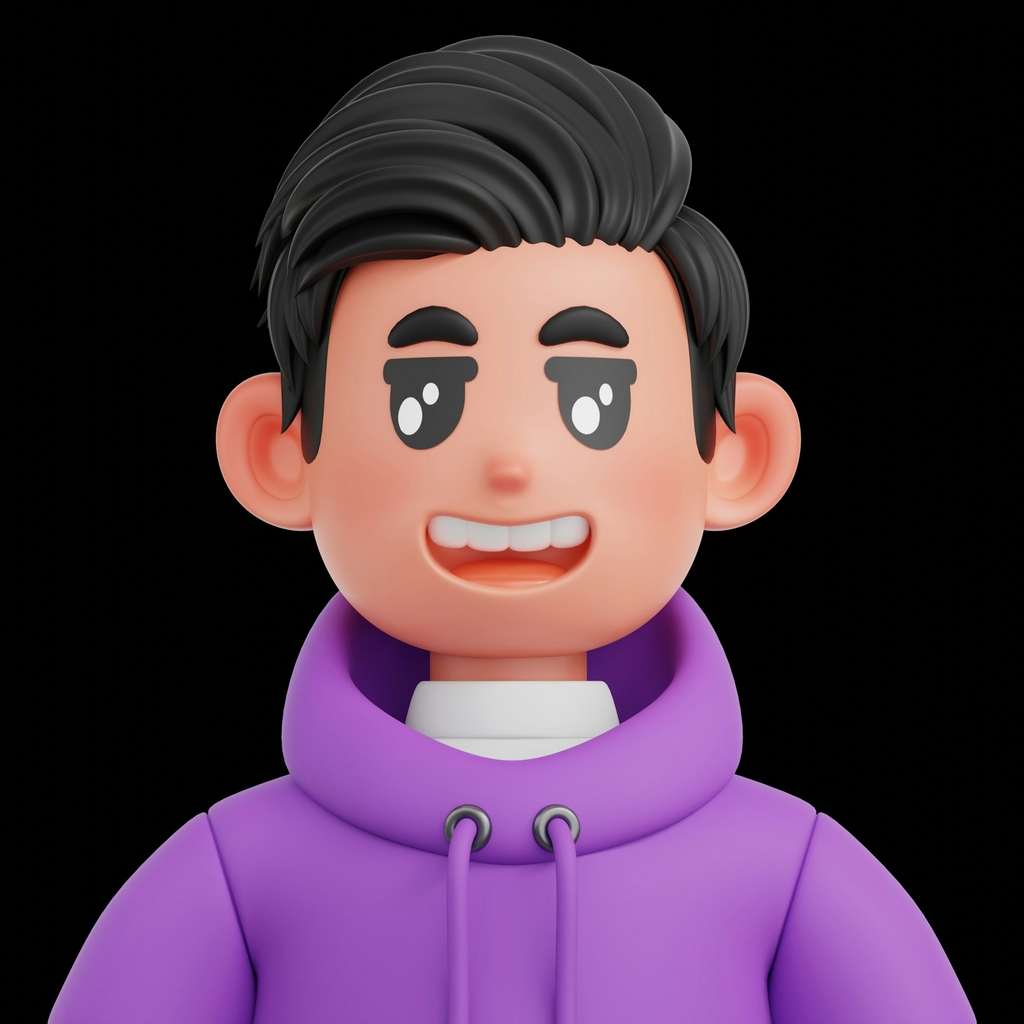
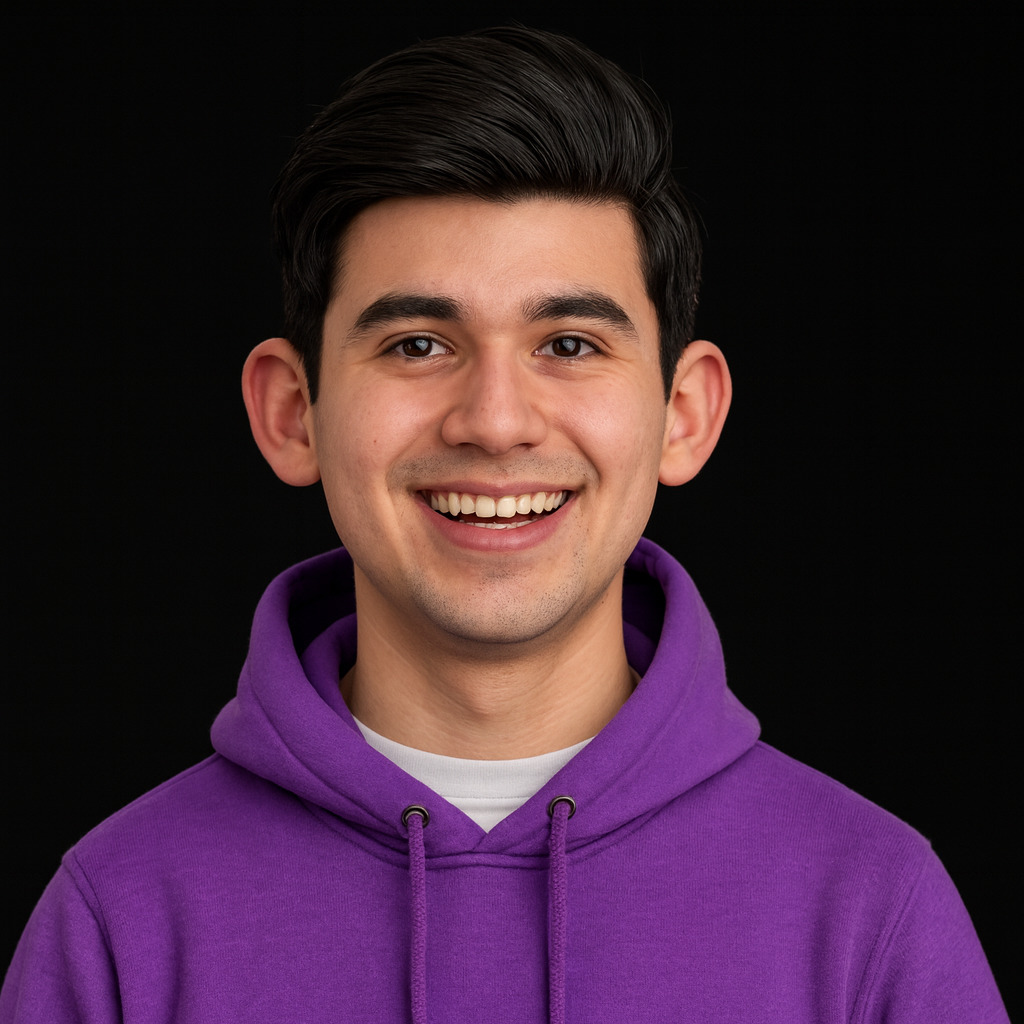
How to create an AI image online
Pixomio makes it simple to turn an idea into an image. Start with a short description of the scene, subject, colours, or mood you want to explore. You can also begin with a photo when you want to transform an existing image instead of starting from scratch. Give the tool a clear direction, generate a result, then adjust your idea and try again until you find a version you like.
- Describe an image idea or upload a photo.
- Choose the creative direction available in the generator.
- Generate, refine your input, and download the result you want to keep.
A specific prompt usually gives you more useful results. Instead of writing “a city”, try “a rainy city street at night with warm shop lights and reflections on the pavement”. For photo transformations, use a clear image with the main subject easy to see.
Create images for ideas, profiles, and creative projects
Use an AI image generator when you need a visual starting point without opening a complex design app. Create a concept image for a moodboard, explore a new look for a social post, turn a portrait into a creative variation, or test an art direction before you spend time editing the final asset. You do not need design experience to experiment: begin with one idea, look at the result, and make the next instruction more specific.
Pixomio is built for quick creative exploration. A single image can become a stylised portrait, a sketch-like illustration, a watercolor-inspired scene, or the starting point for another photo transformation. Results can vary between generations, which makes trying a few directions part of the process.
Explore AI tools for photo transformations
When you already have a photo, choose a tool that matches the result you want. You can turn a photo into anime art, convert a photo to a sketch, or create a watercolor-style image. For portrait experiments, you can combine two faces with AI, try a gender swap filter, or see an older or younger look.
Each tool is designed for a different creative task. Pick the closest match, upload a clear image where the subject is visible, and use the result as a new visual direction to explore.
FAQ
Ready to try it on your own photo?
Upload a picture, pick the look you want and get the result in seconds.